

In today’s fast-paced business environment, efficiency and collaboration are vital. Every team seeks ways to elevate their productivity, streamline workflows, and enhance communication. Enter Monday.com, a powerful Work Operating System that has been helping teams achieve these very goals. This blog will guide you through using Monday.com to supercharge your team’s productivity, covering everything from account creation to pricing, FAQs, and customer support.
Why Choose Monday.com?
Monday.com stands out in a crowded market. It’s not just another project management tool. It’s a versatile platform designed to cater to diverse workflows and team needs. Here are a few reasons why it can be an essential part of your productivity toolkit:
1. Visual Project Management
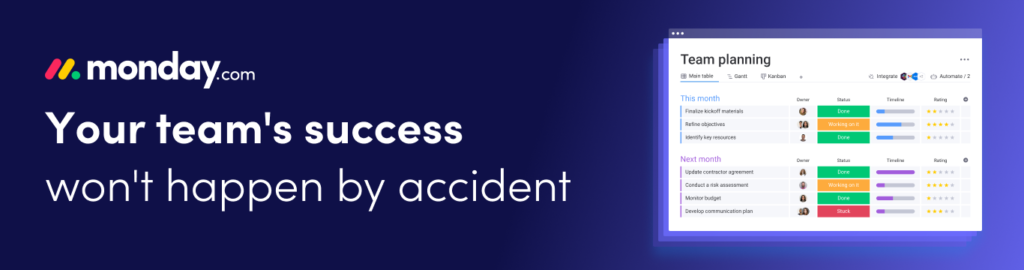
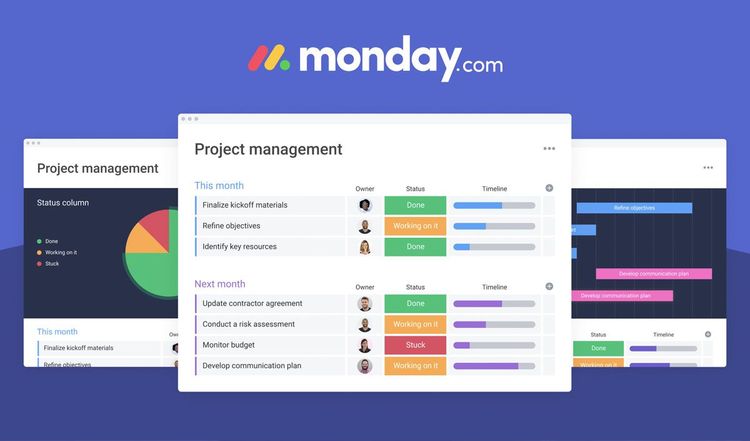
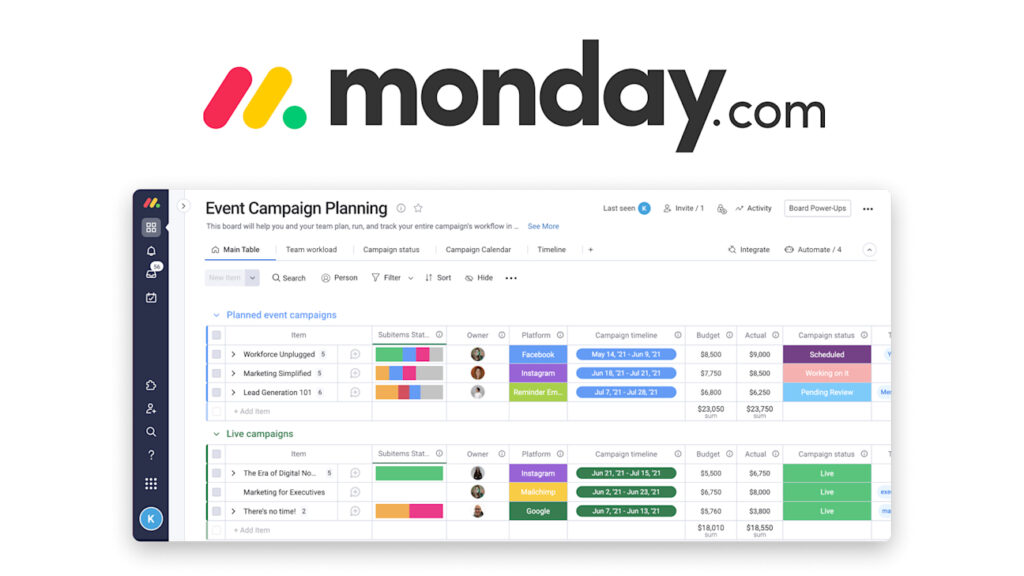
One of the standout features of Monday.com is its visual interface. The platform allows you to create boards that represent your projects. Each board contains items representing tasks, which can be customized to your liking. You can use different views—such as Kanban, Gantt, or calendar—to visualize your work better. This level of customization means you can tailor your boards to fit any project type.
2. Enhanced Collaboration
Collaboration is at the heart of any successful project. Monday.com makes teamwork easy through shared boards, comments, and file sharing directly on tasks. Team members can tag one another and set notifications, ensuring that everyone is on the same page.
3. Automation Capabilities
Repetitive tasks can drain precious time. Monday.com offers automation options that help streamline your workflow. You can automate status updates, notifications, and more. This allows your team to focus on high-impact tasks instead of getting bogged down in manual operations.
4. Integrated Tools
Seamless workflow requires connecting various tools. Monday.com integrates with popular applications like Slack, Google Drive, and Zoom. This means you can pull everything into one platform, minimizing the need to switch between apps and keeping all your information centralized.
5. Customizable Templates
Getting started with Monday.com is easy thanks to its variety of templates. Whether you’re managing a marketing campaign, a software development project, or a sales pipeline, there’s a template that suits your needs. This allows for quick setup and helps implement best practices.
6. Comprehensive Analytics
Understanding your team’s performance is crucial for improvement. Monday.com provides analytics and reporting tools to give insights into project progress, team productivity, and deadlines. This data can inform future project planning and resource allocation.
7. User-Friendly Design
Despite its powerful features, Monday.com is remarkably user-friendly. Its intuitive design means team members can get up to speed quickly, minimizing the learning curve and maximizing productivity right away.
Step-by-Step Guide to Creating Your Monday.com Account
Now that you’re intrigued by the benefits of Monday.com, let’s walk through how to create your account step by step.
Step 1: Visit the Monday.com Website
Open your browser and navigate to https://monday.com/. You’ll find an inviting homepage that showcases the platform’s capabilities and features.
Step 2: Click on “Get Started”
On the homepage, look for the button that says “Get Started” or “Sign Up.” This button is generally easy to find and will take you to the account creation page.
Step 3: Start Your Free Trial
You will have the option to start with a Free Plan or opt for a 14-day free trial of their paid features. Choose the trial option to unlock the full experience.
Step 4: Enter Your Email
Input your work email address in the designated field. Make sure it’s a valid email you have access to, as you’ll need to confirm it later.
Step 5: Set Your Password
Create a strong password. It should include a mix of letters, numbers, and symbols for security.
Step 6: Name Your Workspace
Next, you’ll be prompted to name your workspace. This area will be central to all your project management activities. Choose a name that reflects your team or department.
Step 7: Invite Team Members (Optional)
You can invite team members immediately or skip this step and add them later. If you decide to invite them, input their email addresses, and they’ll receive an invitation.
Step 8: Start Exploring
Once you’ve completed the setup, the trial begins. You’ll enter a dashboard where you can start experimenting with different boards and features. Take your time to explore templates and see what fits your team’s needs.
Understanding Pricing and Subscriptions
Monday.com offers several pricing plans to accommodate teams of various sizes. It is crucial to choose the plan that aligns with your team’s needs and budget.
Overview of Pricing Plans
Free Plan: Ideal for individuals or very small teams, this plan includes up to 2 users and basic features like 3 boards.
Basic Plan: Starting around $9-10 per user per month, this plan includes unlimited boards and items, plus prioritized support.
Standard Plan: This plan is the most popular, beginning at approximately $12 per user per month. It offers timeline and Gantt views, guest access, and 250 automations/integrations.
Pro Plan: For more advanced needs, the Pro Plan starts around $16-19 per user per month. It features private boards, time tracking, and more automations/integrations.
Enterprise Plan: Customized for larger organizations, this plan involves contacting sales for pricing. It offers advanced security and dedicated account management.
Subscription Details
- Monthly vs. Annual Billing: You can opt for monthly or annual billing. Annual subscriptions often come with discounts—typically about 18% off the monthly rate.
- Minimum Team Size: Paid plans usually require a minimum of 3 user seats.
- Feature Updates: Always check Monday.com’s official pricing page for the latest features and costs, as they can change.
Building Your Productivity Engine with Monday.com
Once your account is set up, the real work begins. Here’s a step-by-step guide to building your productivity engine using Monday.com.
Step 1: Choose a Template
Start by selecting a template that fits your project type. Monday.com offers a plethora of templates tailored for various use cases, including marketing, sales, and project management.
Step 2: Customize Your Board
You have the flexibility to edit your board extensively. Change column names, adjust colors, and modify layouts to suit your team’s workflow. This level of customization ensures that your board aligns with your project requirements.
Step 3: Define Statuses
Establish clear statuses for your tasks. For example, create categories like “Not Started,” “In Progress,” “Stuck,” and “Done.” This allows team members to quickly assess where each task stands without confusion.
Step 4: Set Up Automations
Begin with simple automation to streamline your workflows. For instance, you can automate a notification to the project lead whenever a task status changes to “Stuck.” This keeps the team informed without manual checking.
Step 5: Utilize Different Views
Switch between various board views to gain insights. For instance, the Gantt chart view provides a timeline that keeps deadlines visible. Use these different perspectives to track progress effectively.
Step 6: Integrate Collaboration Tools
Connect Monday.com with tools your team already uses. Whether it’s Slack for instant messaging or Google Drive for file sharing, integrations can centralize your operations.
Step 7: Monitor Team Performance
Keep an eye on team performance through Monday.com’s analytics. The insights you gain can help you fine-tune workflows, understand bottlenecks, and improve future project planning.
Frequently Asked Questions (FAQs)
As with any platform, questions will arise. Here are some of the most commonly asked questions:
Q: Is there a free version of Monday.com?
A: Yes! The Free Plan supports up to 2 users and allows you to test basic features.
Q: Can I pay monthly?
A: Absolutely! You can choose to pay monthly. However, annual payments often provide a discount.
Q: What is the minimum team size for paid plans?
A: Typically, paid plans require a minimum of 3 user seats.
Q: Does Monday.com offer mobile access?
A: Yes, there’s a mobile app available for both Android and iOS. This ensures flexibility and access while on the go.
Q: How secure is my data on Monday.com?
A: Security is a top priority. Monday.com employs industry-standard encryption and has multiple security certifications.
Need Help? Contacting Support
If you encounter any issues or need questions answered, Monday.com offers several support resources:
1. Help Center
Start with the Help Center. It features detailed guides, tutorials, and FAQs.
2. Community Forum
Engage with other users on the Community Forum. It’s a platform where you can ask questions and share tips.
3. Email Support
For more direct assistance, you can reach out to their support team at support@monday.com. They strive to respond in a timely manner.
4. Sales Inquiries
If you have questions about pricing, features, or custom solutions, the sales team is available to assist. You can contact them through their website.
Conclusion
Embracing a tool like Monday.com can significantly enhance your team’s productivity. Its ease of use, visual nature, and extensive features create a powerful environment for collaboration. Follow the steps outlined in this blog to set up your account, customize it to fit your unique needs, and leverage its powerful capabilities.
As you implement Monday.com into your daily workflow, you’ll find your team becomes more aligned, more focused, and ultimately more productive. Get started today and watch your team thrive!
Leave a Reply